

😬 Frustrated by 3D printing problems ruining your prints? You're not alone! In 2025, many makers are still dealing with unexpected print failures — from poor bed adhesion to layer shifting.
This guide will show you how to identify, understand, and fix the most common 3D printing issues. You'll find visual examples, up-to-date data, and expert tips to help you achieve professional-quality results at home.
Get ready to discover practical solutions, proven tricks, and step-by-step ways to improve your 3D print quality. Let's print with confidence! 🚀
Bed Adhesion Problems and First Layer Issues
Ever had a 3D print fail right from the start — warping or peeling off the bed? 😱 The first layer is the foundation of every print, so when 3D printing problems strike here, everything can go wrong! One striking stat: 60% of failures reported in 2024 forums were caused by poor initial adhesion.
The most common causes include an unleveled bed, incorrect Z-offset, nozzle too high or too low, and wrong temperatures. If the bed isn't perfectly level or the nozzle is too far away, the filament won't stick and gaps will form. On top of that, a dirty print surface or leftover residue from previous prints increases the risk of 3D printing problems significantly.
To avoid these issues, follow these steps:
- Level the bed before every print.
- Dial in your Z-offset until the filament is slightly squished onto the surface.
- Clean the print surface with isopropyl alcohol.
- Use adhesion aids like hairspray, glue stick, or BuildTak.
Don't forget to slow down your first layer speed — printing slower gives the filament time to bond properly. Choose the right surface for your material:
| Filament | Recommended Surface | Heated Bed |
|---|---|---|
| PLA | Glass, PEI | 60°C |
| ABS | BuildTak, PEI | 100°C |
| PETG | Glass, PEI | 75°C |
If you're printing in a cold room or near drafts, enclose your printer or use a print enclosure. Using a heated bed reduces adhesion failures by up to 80% with ABS and 60% with PLA. Want more practical tips? Check out this guide on Perfect Prints from the First Try to master your first layer.
Mr Resin: Materials and Accessories to Improve Bed Adhesion
Explore Mr Resin's range of resins, filaments, and optimized print surfaces for your 3D printer. We offer guides and accessories to help you nail that perfect first layer and avoid the most frustrating 3D printing problems.
Extrusion Problems: Under-Extrusion, Over-Extrusion, and Clogs
Ending up with weak parts, prints full of gaps, or blobs of excess material? These are some of the most frustrating 3D printing problems out there — and they directly affect the quality and strength of your prints. Let's break down why they happen and how to fix them! 🛠️
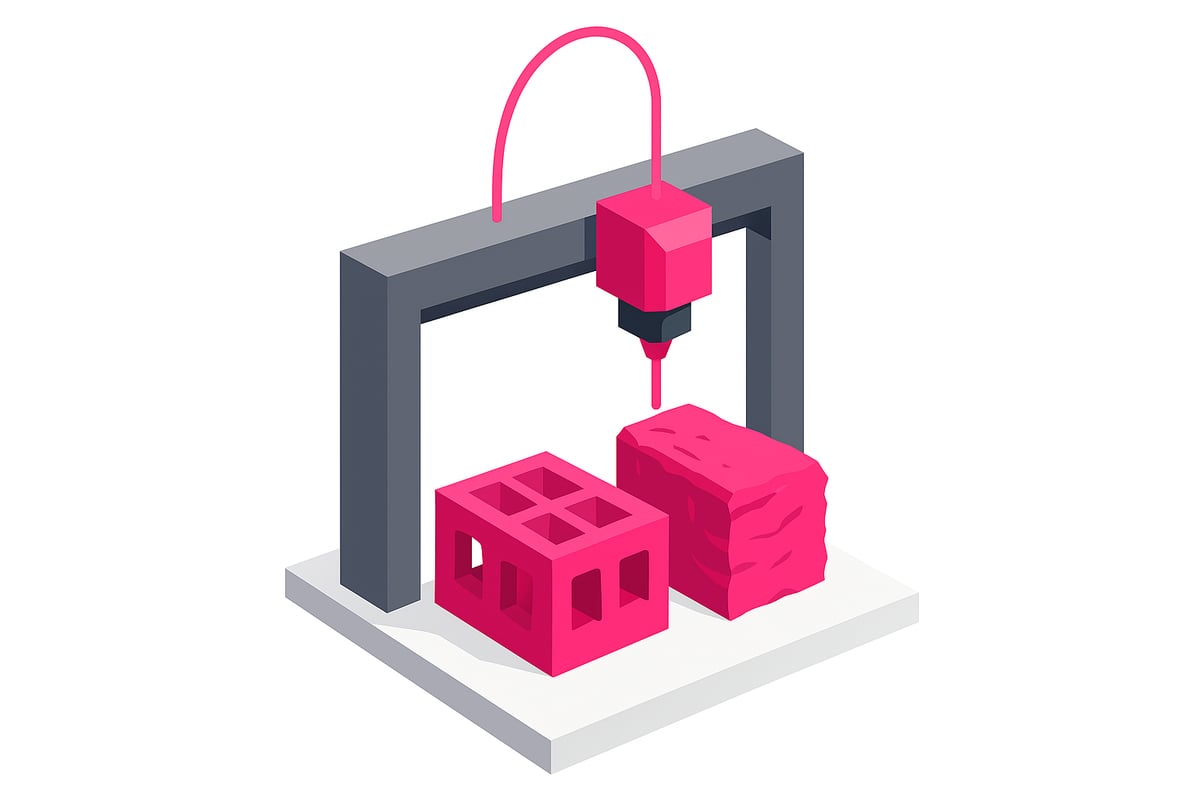
What is under-extrusion and over-extrusion?
Under-extrusion happens when your printer isn't pushing out enough filament, resulting in layers with gaps, weak walls, or missing sections. Over-extrusion, on the other hand, occurs when too much material is deposited, leaving blobs, rough surfaces, and poor detail definition.
Both 3D printing problems can stem from incorrect settings, mechanical issues, or low-quality filament.
Common causes and examples
The most frequent causes of under-extrusion include:
- Filament with an incorrect or inconsistent diameter.
- Partial clog in the hotend.
- Flow rate not properly calibrated in the slicer.
For over-extrusion, the usual culprits are:
- Flow rate settings that are too high.
- Incorrect printing temperature.
- Errors in the model design or slicing software.
A clear visual example: parts with gaps along the perimeters, or conversely, excess material forming blobs and strings. Check out real photos of these issues on our website!
Fixes and recommendations
To solve these 3D printing problems, follow these steps:
- Calibrate your extrusion multiplier and flow rate.
- Measure your filament's actual diameter with calipers.
- Clean your hotend regularly to prevent clogs.
According to user surveys, 35% of people saw significant improvements just by adjusting their flow rate by 5–10%. Using quality filament and storing it properly is also essential. You can learn more in the Complete Guide to 3D Printing Filament.
Be sure to browse our store's printer and filament recommendations to help minimise these issues.
Surface defects: stringing, blobs, and gaps
Noticing thin cobweb-like strings, small blobs, or holes on the surface of your prints? These surface defects are among the most frustrating 3D printing problems, yet they're also the most common in any home workshop. Spotting them early is key to improving print quality and avoiding nasty surprises when you pull your model off the bed.
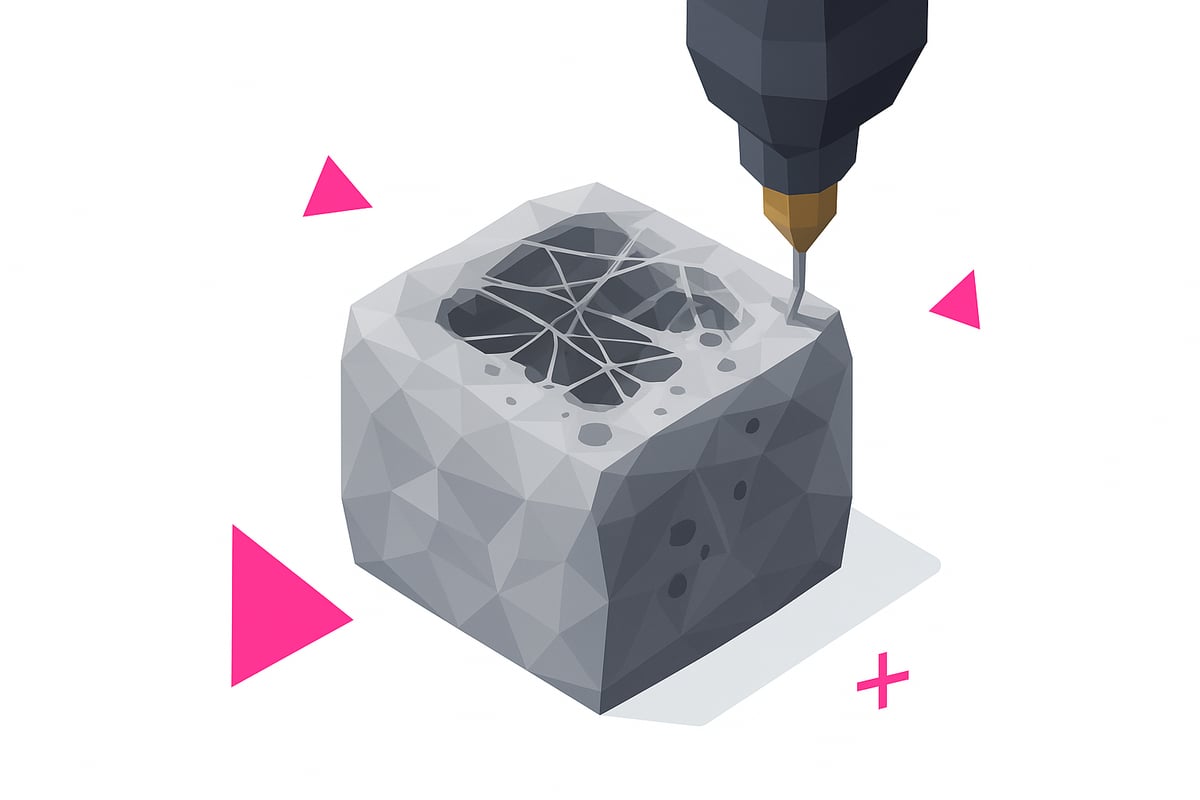
Stringing occurs due to poor retraction settings or temperatures that are too high — this is especially common with filaments like PETG. Blobs are usually caused by pauses in extrusion, G-code errors, or too much extruder pressure. Gaps on the top layer typically point to insufficient infill or too few solid top layers. If any of these 3D printing problems sound familiar, I'd recommend checking out resources like 3D Printing Problems for examples and solution comparisons.
What can you do? Adjust retraction and retraction speed, lower the temperature if you're seeing stringing, and enable the "avoid crossing perimeters" option in your slicer. For blobs and zits, check your extrusion flow rate and make sure your G-code is generated correctly. If you're getting gaps, increase the number of top layers and your infill percentage. Users report that dialing in retraction can reduce stringing by up to 70%, according to 2024 test results. Always use real photos to compare and easily spot these defects.
Mechanical issues and layer shifting
Ever ended up with a print that has misaligned layers or cracks? These 3D printing problems are usually caused by mechanical issues that directly affect the quality and strength of your parts.
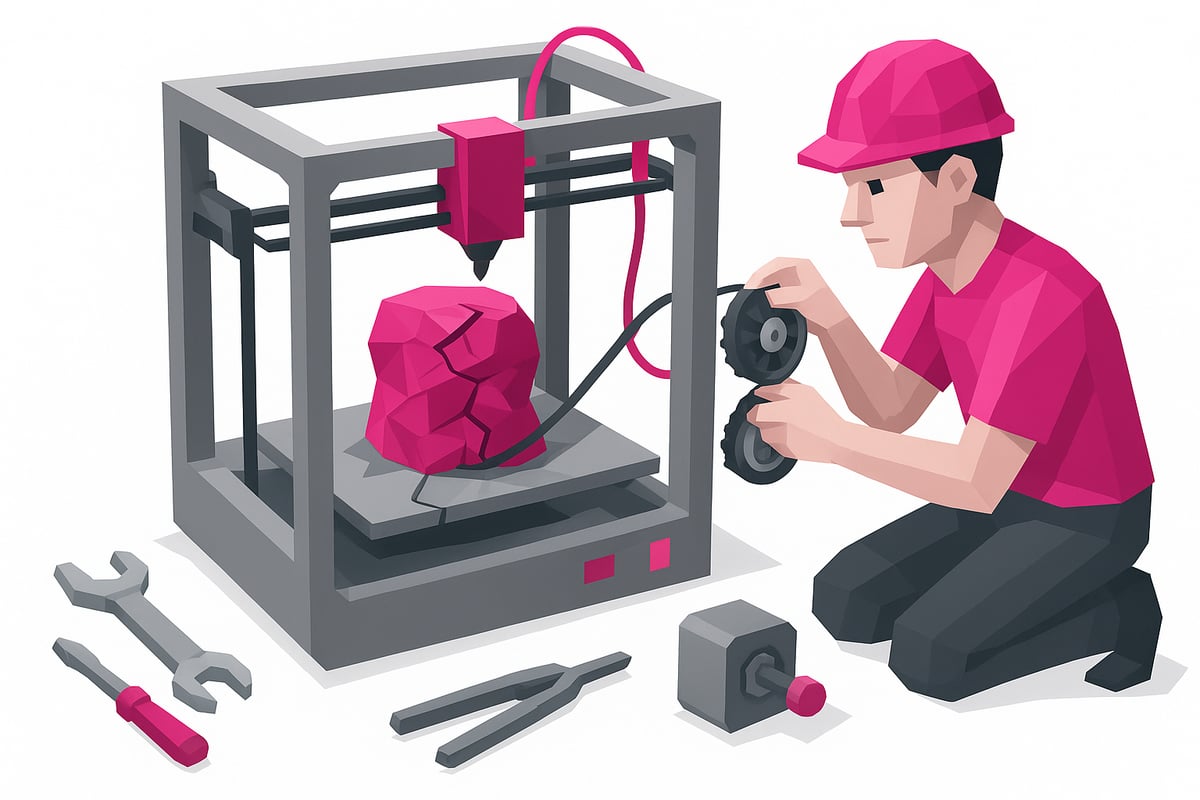
Why does layer shifting happen?
The main causes include loose belts, out-of-calibration motors, and obstructions on the axes. On top of that, excessive cooling, temperatures that are too low, or printing too fast can cause layer separation and structural failures.
Typical symptoms: layers that visually don't line up, cracks or shifted lines, and in some cases, brittle parts that break easily.
- Loose or worn belts
- Dirty rails or lack of lubrication
- Outdated motor drivers
Practical fixes to avoid mechanical failures
Start by regularly checking and tensioning your belts. Lubricate the axes with the right products and make sure there are no obstructions. Update your drivers and firmware if needed.
Proper ventilation and a stable ambient temperature make a big difference, especially with FDM printers. Studies suggest that 25% of mechanical failures are caused by insufficient maintenance.
To learn more about how FDM printers work and how to maintain them, visit What is FDM 3D printing.
On resin printers, mechanical problems tend to be more related to the build platform and Z-axis. Keep everything clean and properly adjusted to avoid layer shifts and structural failures.
Material issues and hotend clogs
Ever had your printer stop mid-print because filament just won't come out? 😫 3D printing problems linked to the hotend can ruin any project, especially if you don't quickly identify the cause.
Causes and symptoms of a clogged hotend
Clogs are usually caused by debris, degraded filament residue, or foreign particles. If your extruder motor is turning but no filament is coming out, or you're dealing with constant jams, watch out! These 3D printing problems show up a lot with old or moisture-damaged filament, or materials with metal particles and fiber fill.
| Cause | Main symptom |
|---|---|
| Dirty filament | Recurring jams |
| Moisture in filament | Inconsistent extrusion |
| Foreign particles | No filament coming out |
15% of serious failures require disassembling the extruder to fully clean out the hotend.
How to clean your hotend and prevent failures
Is your extruder making noise but not printing? Try a cold pull: heat the hotend, insert filament, and gently pull it out once it cools. If that doesn't work, disassemble the hotend and use cleaning needles.
- Store filament in sealed bags with desiccant.
- Use quality resins or filaments and avoid contaminants.
- Clean the hotend regularly to prevent buildup.
If you work with 3D resins, check out this guide on 3D Resin Problems and Solutions for material-specific tips and cleaning advice.
Recommended products and final tips
On our website you can find real product images, including dry filaments and cleaning kits. Remember: prevention is key to avoiding 3D printing problems caused by clogs. Store your materials in a dry place and always check the condition of your hotend before starting a print.
Advanced tips to improve your 3D print quality
Ready to take your results to the next level? Here are the best advanced tips to troubleshoot 3D printing problems and achieve flawless prints. Let's go step by step! 🛠️✨
Advanced tips to avoid 3D printing problems:
- Calibrate your extruder and flow rate. Incorrect steps settings can cause over- or under-extrusion. Use tests like the calibration cube and temperature tower to fine-tune every parameter.
- Download recommended print profiles from manufacturers or the community. These profiles already optimise most settings and save you time on trial and error.
- Control your ambient temperature and humidity. Materials like nylon and resins are moisture-sensitive; using dehumidifiers or dry boxes makes a significant difference in results.
- Carry out preventive maintenance: clean the hotend, check belts, update firmware, and lubricate the axes. Users who do this monthly report up to 40% fewer 3D printing problems.
- Optimise your nozzle path with the help of recent research, such as the study on Nozzle Path Optimisation in 3D Printing, which explains how to improve quality and reduce print time.
If you have questions, join online communities, share your profiles, and learn from others' experiences. Sometimes, a small Z-offset adjustment is all it takes to fix persistent first-layer issues! Experiment, keep learning, and you'll notice your prints looking more and more professional.
Now that we've covered all the common 3D printing problems and how to fix them, you're probably eager to get started on your next project. Remember that material quality makes an enormous difference in your final results—no matter how well-calibrated your printer is, poor-quality resin will keep causing issues. If you want to make sure your prints come out perfect from the first layer to the final finish, take a look at all the top options here:
Shop all 3D printing resins