

🧲 Ti piacerebbe stampare pezzi flessibili e super resistenti con la tua stampante 3D nel 2025? Il segreto è padroneggiare come stampare il TPU, il filamento flessibile che sta rivoluzionando il mondo maker.
In questa guida pratica scoprirai tutto il necessario per avere successo: da cos'è il TPU e perché sceglierlo, fino a come preparare la tua stampante, impostazioni consigliate, tecniche avanzate e trucchi per risolvere i problemi più comuni.
Oggi le applicazioni flessibili nella stampa 3D sono in pieno boom, e il TPU offre vantaggi unici che sempre più utenti cercano. Immagina di creare in casa pezzi utili, durevoli e con una finitura professionale.
Pronto a portare i tuoi progetti al livello successivo? Continua a leggere e impara a padroneggiare il TPU come un vero pro nel 2025. L'avventura flessibile inizia qui! 🚀
Cos'è il TPU e perché sceglierlo per la stampa 3D?
Il TPU (poliuretano termoplastico) è un filamento di punta per chi cerca flessibilità e resistenza nella stampa 3D. Questo materiale si distingue per la sua elasticità, potendo allungarsi fino al 500% senza rompersi, e per la capacità di sopportare l'usura quotidiana, i prodotti chimici e gli oli. Stampare il TPU ti permette di creare pezzi non solo flessibili, ma anche incredibilmente durevoli.
Rispetto ad altri filamenti come PLA, PETG e ABS, il TPU si differenzia principalmente per la sua capacità di assorbire urti e vibrazioni. Dai un'occhiata a questa tabella rapida:
| Filamento | Flessibilità | Resistenza all'usura | Usi principali |
|---|---|---|---|
| TPU | ⭐⭐⭐⭐⭐ | ⭐⭐⭐⭐⭐ | Cover, plantari, pezzi flessibili |
| PLA | ⭐ | ⭐⭐ | Prototipi, pezzi decorativi |
| PETG | ⭐⭐ | ⭐⭐⭐ | Pezzi tecnici, bottiglie |
| ABS | ⭐ | ⭐⭐⭐ | Scocche, pezzi meccanici |
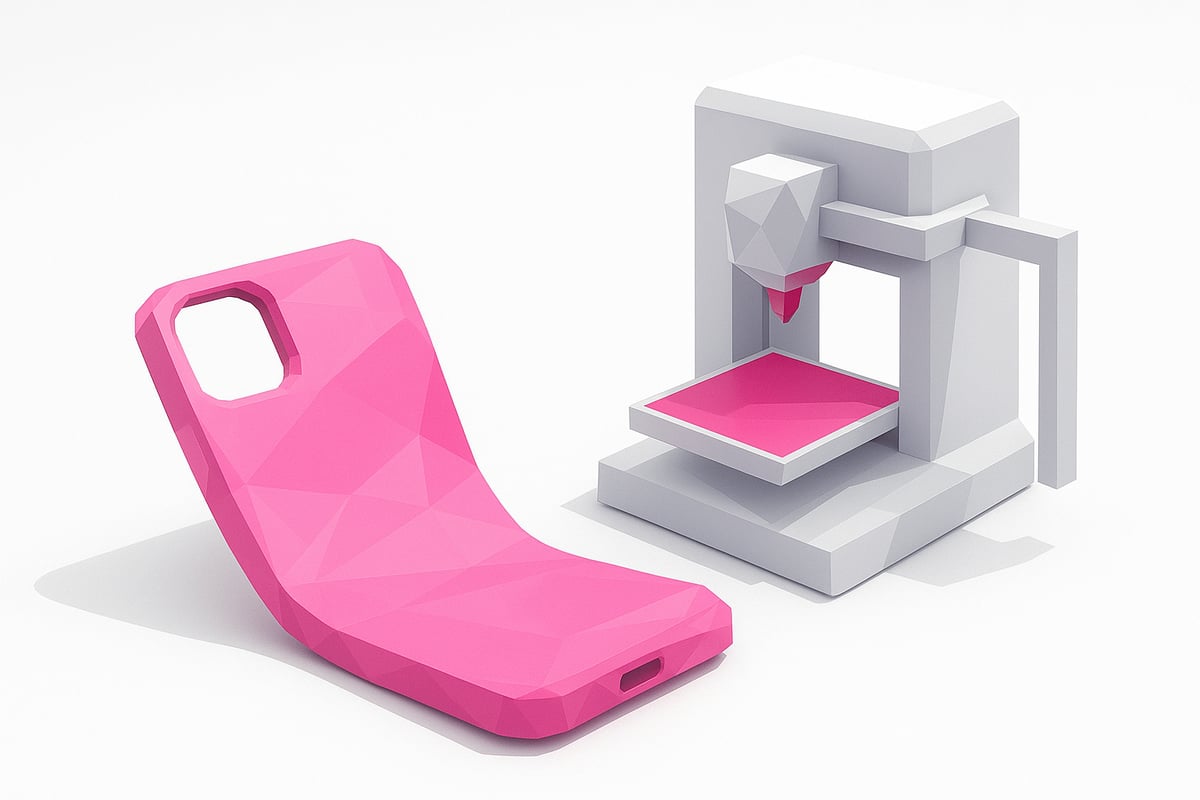
Oggi stampare il TPU è di tendenza nella prototipazione funzionale, nelle cover per smartphone, nei plantari ortopedici e nei componenti industriali. Se sei indeciso tra le diverse durezze Shore (85A, 90A, 95A), scegli in base alla flessibilità che ti serve: più basso è il numero, più morbido è il materiale.
Vuoi sapere di più su come scegliere il miglior filamento per la tua stampante? Scopri tutti i dettagli nella Guida completa ai filamenti 3D. Così potrai stampare il TPU e sfruttare la sua capacità di assorbire urti e vibrazioni nei tuoi prossimi progetti.
Preparazione della stampante 3D per stampare il TPU
Pronto a fare il salto e iniziare a stampare il TPU con la tua stampante 3D? 🧰 Una preparazione adeguata è la chiave per ottenere pezzi flessibili senza grattacapi.
Estrusore e ugelli: la coppia infallibile
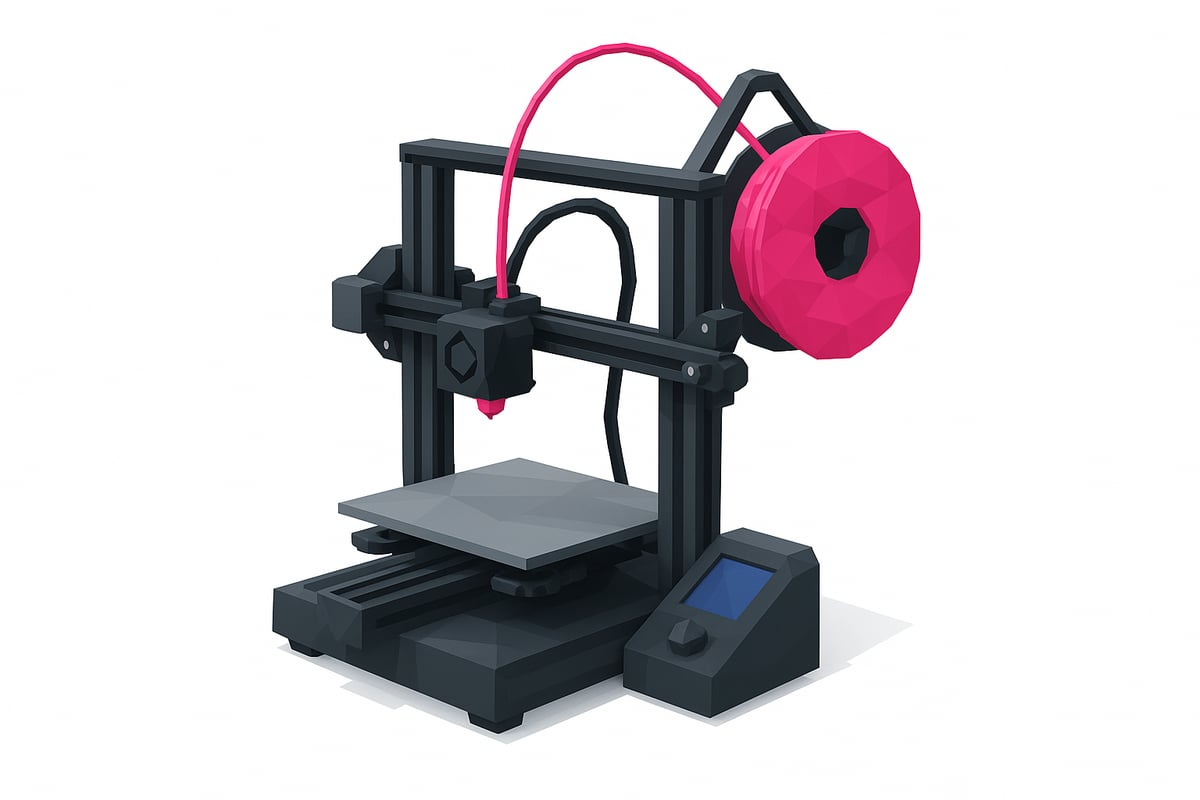
Per stampare il TPU senza problemi, scegli un estrusore direct drive. Questi estrusori offrono un migliore controllo sul filamento flessibile e riducono gli intasamenti. Se la tua stampante usa un sistema Bowden, puoi comunque stampare il TPU, ma dovrai abbassare la velocità e regolare bene la retrazione.
L'ugello consigliato è da almeno 0,4 mm, anche se uno da 0,6 mm facilita il flusso ed evita ostruzioni. Non dimenticare di controllare lo stato dell'ugello prima di iniziare!
Pulizia e manutenzione: la base di tutto
Prima di caricare il TPU, pulisci bene l'hotend ed elimina i residui di altri materiali. Un hotend sporco può causare intasamenti e una scarsa qualità di stampa. Approfittane per controllare l'estrusore e assicurarti che gli ingranaggi siano puliti e privi di residui.
Percorso del filamento e supporto per bobina
Riduci al minimo l'attrito lungo il percorso del filamento usando guide o tubi in PTFE ben allineati. Un supporto per bobina migliorato, posizionato proprio sopra o all'altezza dell'estrusore, aiuta il TPU ad avanzare in modo fluido e senza strappi. Se cerchi idee per migliorare la tua macchina, ecco alcuni tutorial di stampa 3D passo passo che ti saranno utilissimi.
Piatto di stampa e calibrazione precisa
Scegli una superficie di stampa che offra una buona adesione, come PEI o vetro testurizzato, ma evita di usare lacca o colla per non esagerare con l'adesione. Livella il piatto con precisione ed esegui una prova di estrusione per assicurarti che il filamento scorra in modo uniforme.
Consigli rapidi per evitare intasamenti
- Usa una guida per filamento rigida.
- Regola la tensione dell'estrusore, né troppo allentata né troppo stretta.
- Mantieni una velocità bassa e costante.
Preparare bene la tua stampante è il primo passo per stampare il TPU con successo. Dedica tempo a queste regolazioni e vedrai che i tuoi pezzi usciranno flessibili, robusti e senza brutte sorprese.
Impostazioni di stampa ottimali per il TPU nel 2025
Vuoi ottenere finiture professionali quando stampi il TPU? La chiave sta nel regolare bene i parametri. Ecco come configurare la tua stampante per ottenere pezzi flessibili, resistenti e senza difetti.
Temperatura e velocità di stampa
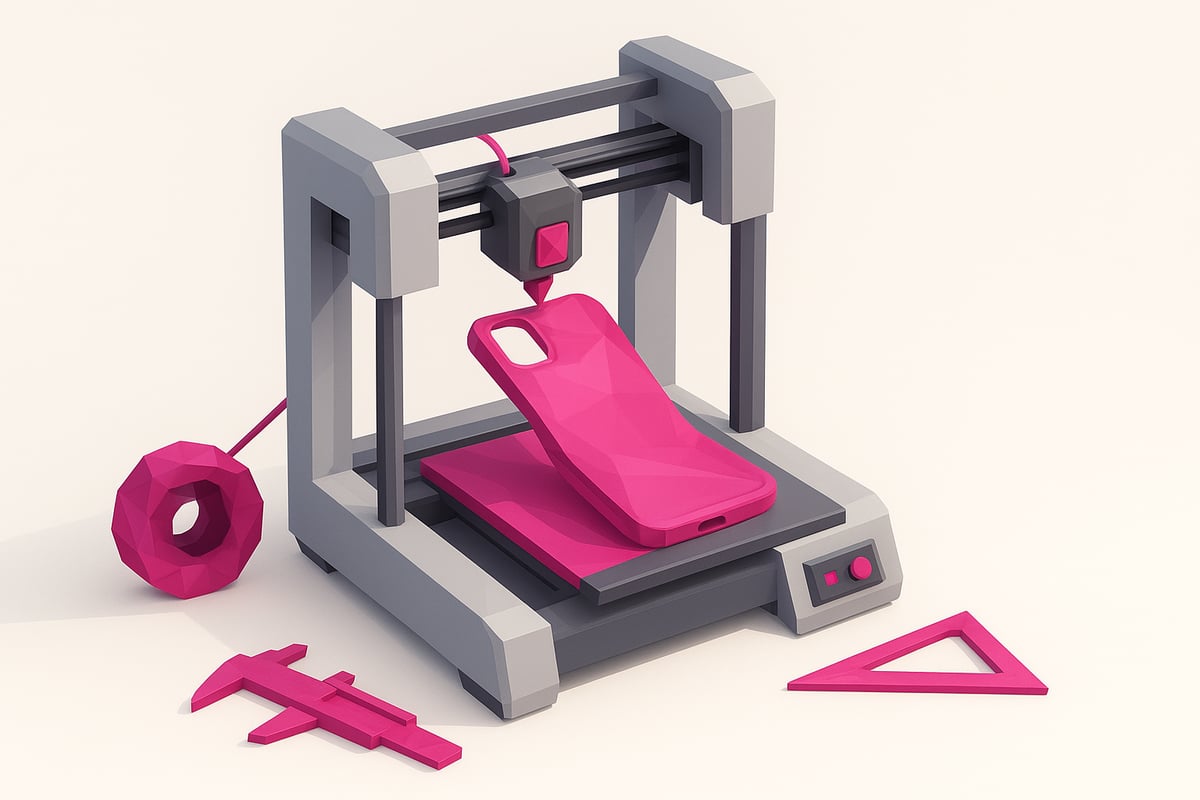
Per stampare correttamente il TPU, imposta la temperatura dell'estrusore tra 210°C e 240°C. Il punto ottimale di solito è 230°C. Mantieni velocità basse, da 20 a 30 mm/s, per evitare intasamenti e ottenere dettagli puliti. Se stampi troppo velocemente, potresti notare superfici ruvide o problemi di estrusione.
Vuoi approfondire queste impostazioni? Consulta questa guida su come stampare in 3D il TPU flessibile per raccomandazioni specifiche in base alla durezza del filamento.
Altezza layer e retrazione
L'altezza layer consigliata è di 0,2 mm o superiore. In questo modo riduci il rischio di ostruzioni e ottieni un flusso migliore. Per quanto riguarda la retrazione, usa valori bassi: da 1 a 2 mm con velocità di 20 mm/s. Evita valori alti che possono causare intasamenti. Una regolazione fine in questo punto migliora la qualità dei pezzi e riduce i fastidiosi filamenti.
Raffreddamento e adesione al piatto
Durante i primi layer, quando stampi il TPU, spegni la ventola. Dopo, attivala al 30%. Non serve usare il piatto riscaldato né adesivi extra, perché il TPU di solito aderisce bene alle superfici pulite. Questa configurazione aiuta a evitare deformazioni e migliora la stabilità del pezzo.
Problemi di adesione? Curare la pulizia del piatto e il raffreddamento può fare la differenza quando stampi il TPU, permettendoti di ottenere basi piatte e ben aderenti.
Tabella riassuntiva dei parametri consigliati
Ecco un riepilogo rapido delle impostazioni ideali per stampare il TPU:
| Parametro | Valore consigliato |
|---|---|
| Temperatura | 210°C - 240°C |
| Velocità | 20 - 30 mm/s |
| Retrazione | 1 - 2 mm a 20 mm/s |
| Altezza layer | ≥ 0,2 mm |
| Larghezza perimetro | 0,4 - 0,6 mm |
Salva il tuo profilo personalizzato nello slicer per i progetti futuri. Così avrai sempre a portata di mano i tuoi parametri ottimizzati ed eviterai di ripetere gli stessi errori.
Consigli avanzati per una stampa del TPU senza difetti
Vuoi che i tuoi pezzi flessibili escano perfetti ogni volta che stampi il TPU? Questi trucchi avanzati ti aiuteranno a evitare gli errori più comuni e a sfruttare al massimo la tua stampante.
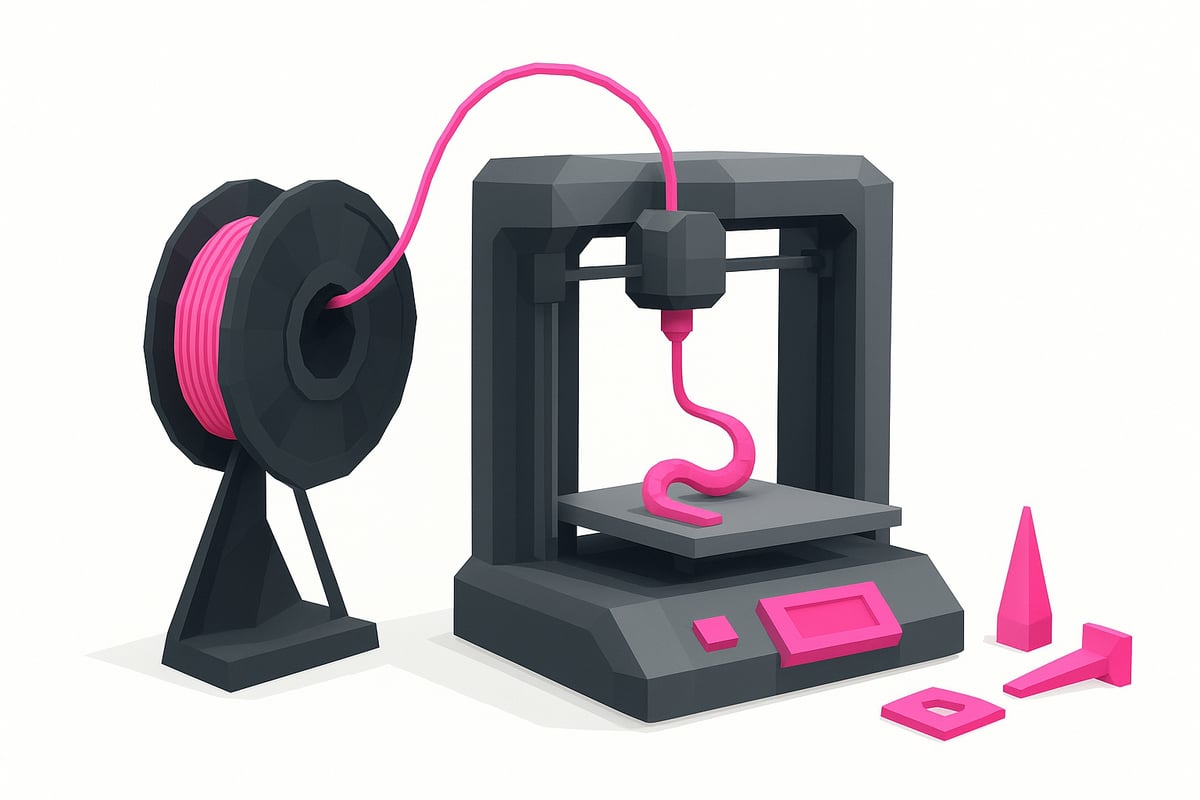
Mantieni sempre il filamento asciutto. Il TPU assorbe l'umidità come una spugna, il che può causare bolle e problemi di stringing. Usa bustine essiccanti o box deumidificatori prima di stampare il TPU per garantire una finitura liscia e robusta.
Regola con attenzione retrazione e temperatura. Per evitare fastidiosi filamenti, prova con retrazioni corte e lente. Stampa delle torri di temperatura per trovare il punto ideale della tua bobina. Se puoi, calibra il flusso tra il 95% e il 105%, usando cubi di prova per affinare ancora di più i risultati.
Modifica la tua stampante con supporti per bobina superiori e guide stampate in 3D. Questo riduce l'attrito e migliora l'alimentazione del filamento, soprattutto quando stampi TPU a bassa durezza. Se ti serve ispirazione, puoi vedere altri consigli e trucchi per stampare il TPU che ti aiuteranno a ottimizzare la tua esperienza.
Scegli la durezza del filamento adatta al tuo progetto. I pezzi morbidi (Shore 85A) assorbono meglio gli urti, mentre quelli più rigidi (95A) sono ideali per componenti strutturali. Quando rimuovi i pezzi, fletti delicatamente la piastra o usa una spatola sottile per non danneggiare il piatto di stampa.
Con questi consigli avrai meno errori e più pezzi flessibili pronti per qualsiasi applicazione.
Risoluzione dei problemi comuni nella stampa del TPU
Hai problemi quando stampi il TPU? Niente paura! Ecco come superare i difetti più frequenti per far uscire i tuoi pezzi perfetti.
Intasamenti e problemi di flusso
Gli intasamenti nell'estrusore di solito sono causati da una retrazione eccessiva o da velocità troppo alte. Abbassa la velocità di stampa e riduci la retrazione a 1-2 mm per evitare che il filamento si blocchi.
Verifica che l'ugello sia pulito e usa un diametro di almeno 0,4 mm. Controlla la tensione dell'estrusore e pulisci gli ingranaggi per un avanzamento fluido.
Difetti superficiali più comuni
Vedi filamenti (stringing), bolle o layer irregolari? Asciuga bene il filamento, regola la temperatura e diminuisci la retrazione. Se compaiono bolle, è segno di umidità nel materiale.
Prova ad attivare la ventola solo a partire dal secondo layer e mantieni il flusso tra il 95% e il 105% in base alla qualità dei tuoi pezzi.
Diagnosi e manutenzione rapida
Esegui prove a parete singola per individuare problemi di sovraestrusione o sottoestrusione quando stampi il TPU. Controlla il tubo in PTFE e sostituiscilo se noti segni di usura.
Pulisci regolarmente i residui di filamento dall'ugello e dagli ingranaggi. Se ti servono altri trucchi, consulta questa guida alla Risoluzione dei problemi nella stampa 3D per padroneggiare l'arte di stampare il TPU.
Ottimizzazione e profili per il successo
Salva i tuoi profili di stampa ottimizzati dopo ogni regolazione. Così, la prossima volta che stamperai il TPU, avrai una base affidabile ed eviterai di ripetere gli errori.
Ricorda: ogni bobina può richiedere piccole modifiche di temperatura o flusso. La pratica rende perfetti!
Trovi il nostro filamento flessibile TPU in due durezze, 95A e 68D, e tutti gli altri materiali tra i filamenti per stampante 3D.
Domande frequenti sulla stampa del TPU
Hai dubbi su come stampare il TPU con successo? Ecco le risposte alle domande più comuni! 🤔
- Mi serve il piatto riscaldato per stampare il TPU? No, la maggior parte dei TPU aderisce perfettamente anche senza piatto riscaldato.
- Quale ugello è meglio? Si consiglia di usarne uno da almeno 0,4 mm, ma uno da 0,6 mm riduce il rischio di intasamenti.
- Come evito lo stringing? Regola la retrazione e mantieni asciutto il filamento.
- Perché è importante l'essiccazione? Il TPU assorbe rapidamente l'umidità, il che può causare bolle e difetti.
- Cosa faccio se il filamento si inceppa? Abbassa la velocità, controlla la tensione e pulisci l'estrusore.
- Come conservo il TPU? Conservalo in sacchetti ermetici con gel di silice.
- Quali impostazioni uso per i pezzi funzionali? Usa layer da 0,2 mm, velocità bassa e temperatura ottimale. Se vuoi approfondire, consulta questa Guida completa alla stampa 3D con TPU.
Fatto! Ora hai tutto l'essenziale per stampare il TPU senza complicazioni. Se ti viene qualche altro dubbio, scrivilo nei commenti o unisciti alla nostra community.
Conclusione:
Ora hai tutte le chiavi per stampare il TPU con successo nel 2025! Ricorda che padroneggiare questo filamento flessibile apre le porte a progetti resistenti, utili e professionali. Per approfondire i concetti di base, puoi dare un'occhiata a Cos'è la stampa 3D a filamento e completare così il tuo apprendimento.
Visita il nostro negozio online per scoprire i migliori filamenti, stampanti e accessori. Unisciti anche al nostro gruppo Telegram su https://t.me/MrResin3D e non perderti sconti, coupon e il supporto di una community appassionata.
Non dimenticare di iscriverti alla nostra Newsletter per ricevere offerte, novità e trucchi esclusivi, così che la tua esperienza nello stampare il TPU sia sempre da 10.
✨Happy Printing! 🚀
Ora che sai come preparare la tua stampante, quali impostazioni usare e persino come risolvere gli errori più comuni con il TPU, di sicuro ti è venuta voglia di sperimentare nuovi progetti. E se vuoi provare diversi tipi di filamenti flessibili o hai bisogno di rifornire le tue scorte, ti consiglio di dare un'occhiata alla nostra selezione di materiali. Qui troverai dal TPU fino a opzioni più rigide, ideali per qualsiasi idea ti venga in mente. Dai un'occhiata e trova il filamento perfetto per la tua prossima stampa:
Vedi tutti i filamenti per stampa 3D